
sitemap: false
The problem with default layouts
I was looking at the WooCommerce edit screen a few weeks ago and it really started to get on my nerves. If you want to add any extra data to a product, the default way is to create a meta box. Usually, these meta boxes end up at the very bottom of the page, or you have to hide them inside one of those vertical tabs in the product data section. It is a lot of clicking and scrolling for something that should be simple.
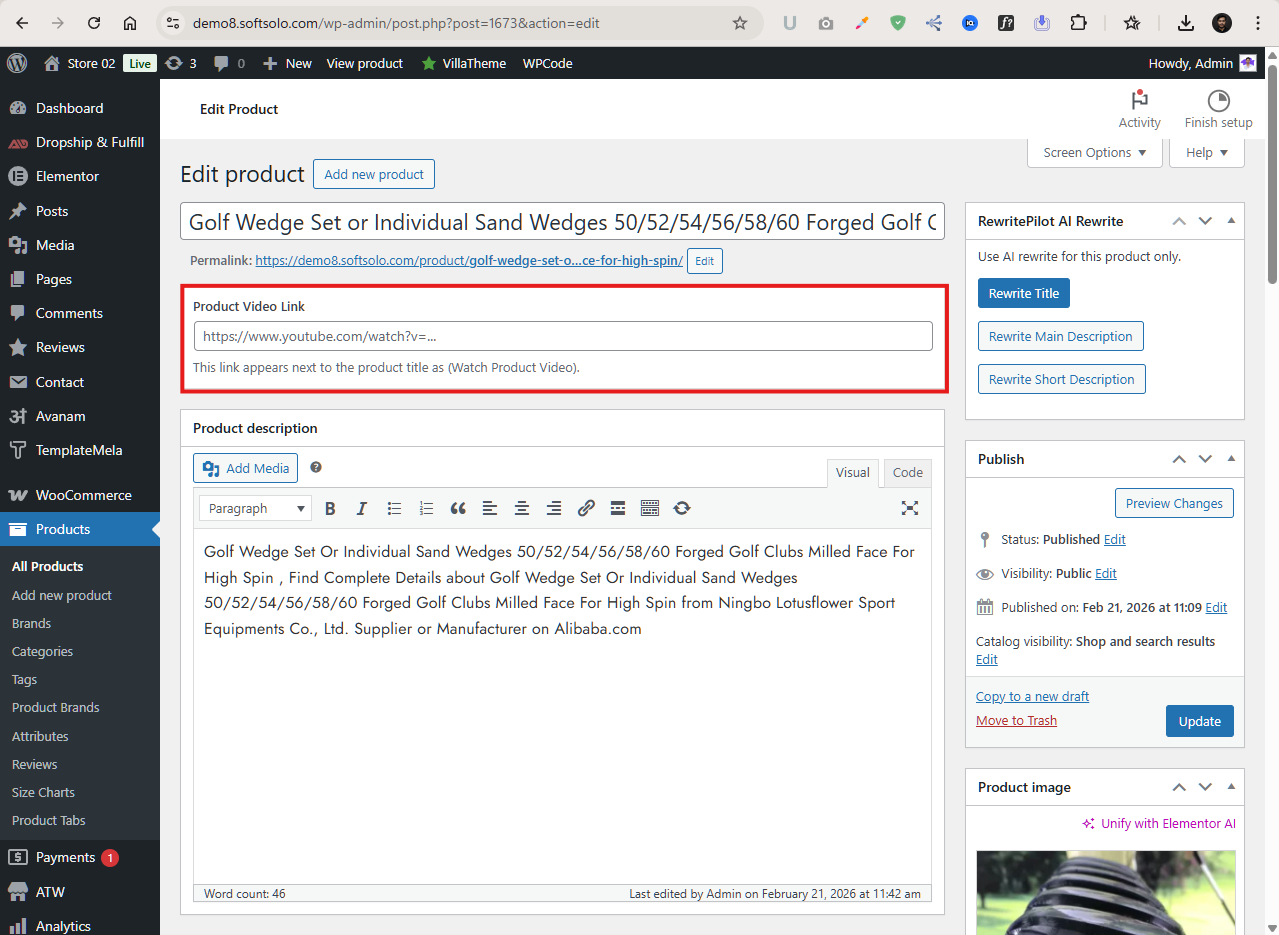
I had a specific need for this project. I wanted a way to add a product video link, but I wanted it to be the first thing I saw after the title. When you are managing hundreds of products, every second you spend hunting for a text field adds up. I felt like the standard WordPress way of doing things was actually slowing me down. I started wondering why there is so much empty space under the title input in the admin area and why more people do not use it.
The goal was simple. I wanted a field for a URL right under the title. Then, on the actual website, I wanted a link to appear right next to the product title that says (Watch Product Video). No fancy buttons, no heavy scripts, just a clean link that people can click. This is how I ended up building this specific extension.
Real world constraints
I did not have weeks to build some massive video management suite. I just needed something that worked. One of the biggest issues I ran into was how WordPress handles the edit screen. There is a hook called edit_form_after_title, but it behaves differently depending on what post type you are using. Since I was targeting WooCommerce products, I had to make sure I was not accidentally injecting my custom field into regular blog posts or pages.
Money was also a factor, in the sense that I did not want to buy a heavy plugin like ACF Pro just for one single field. It felt like overkill. I wanted a lightweight, standalone file that I could drop into any site without adding more bloat. I also had to think about the learning curve for the person actually using the site. If I put the field in a weird spot, they would forget to fill it out. By putting it right under the title, it becomes part of the natural workflow: type the name, paste the link, move on.
I struggled a bit with the front-end display. Different themes handle titles in different ways. Some themes use the standard the_title hook, while others use custom templates. And then there is Elementor. Elementor is a pain because it often bypasses standard WordPress filters. I had to spend a good few hours figuring out how to get my link to show up inside an Elementor product title widget without breaking the layout.
How the code is structured
I decided to wrap everything in a final class called AW_Product_Title_Video_Link. I like using static methods for these kinds of small plugins because it keeps the global namespace clean and I do not have to worry about instantiating objects everywhere. It is straightforward and it works.
The plugin uses a single meta key called _aw_product_video_link to store the URL. I kept it simple. I did not need a complex database table or anything like that. Just one row in the postmeta table per product. Here is a look at how I initialized the hooks:
public static function init(): void {
    add_action( 'edit_form_after_title', array( __CLASS__, 'render_admin_field_below_title' ) );
    add_action( 'save_post_product', array( __CLASS__, 'save_admin_field' ) );

    add_action( 'wp', array( __CLASS__, 'replace_single_product_title' ) );
    add_action( 'wp_head', array( __CLASS__, 'print_inline_styles' ) );
    add_action( 'wp_footer', array( __CLASS__, 'print_frontend_fallback_script' ), 99 );
    add_filter( 'elementor/widget/render_content', array( __CLASS__, 'filter_elementor_widget_render_content' ), 10, 2 );
}
The render_admin_field_below_title method is what actually draws the input box on the backend. I added some basic styling to it so it looks like it belongs in the WordPress dashboard. I used a simple border and some padding. I also added a nonce field for security. You should never save data in WordPress without checking a nonce first, otherwise you are just asking for trouble.
Dealing with the frontend and Elementor
The frontend part was tricky. I wanted the link to appear right after the title text. Initially, I tried using a filter on the_title, but that caused issues in the menu and other places where the title is displayed. I only wanted it on the single product page.
To fix this, I used the wp action to check if we are on a single product page before doing anything. For Elementor support, I had to use the elementor/widget/render_content filter. This looks at the content being rendered and, if it is a product title widget, it appends my custom HTML link to the title string. It is a bit of a workaround, but page builders often require these kinds of specific fixes.
public static function filter_elementor_widget_render_content( $content, $widget ) {
    if ( 'wc-product-title' !== $widget->get_name() && 'heading' !== $widget->get_name() ) {
        return $content;
    }

    $post_id = get_the_ID();
    $video_url = get_post_meta( $post_id, self::META_KEY, true );

    if ( ! empty( $video_url ) ) {
        $video_html = ' <a href="' . esc_url( $video_url ) . '" class="aw-video-link" target="_blank">(Watch Product Video)</a>';
        $content = str_replace( '</h1>', $video_html . '</h1>', $content );
    }

    return $content;
}
I also added a fallback script in the footer. This script is a bit of insurance. If the PHP filters fail for some reason or if the theme layout is really weird, the JavaScript looks for the product title on the page and manually injects the link. It might seem redundant, but in the world of WordPress themes, you can never be too sure. It is better to have a fallback than to have a client complain that the feature is missing on their specific setup.
Technical tradeoffs
I made a few specific choices that some developers might disagree with. First, I put the CSS in the wp_head instead of a separate file. Why? Because the CSS is only about five lines long. Making the browser fetch an entirely new .css file for five lines of code is a waste of a request. It is faster to just print it inline.
Second, I hardcoded the link text as (Watch Product Video). In a perfect world, I would have made this a setting in the admin area so it could be changed. But again, constraints. I needed this done quickly, and the user did not need to change the text. I chose speed of development over total flexibility. If I need to change it later, I can just open the file and edit one line. It is not a big deal for a custom project.
I also decided to keep the input as a URL type. This provides some basic browser level validation. If someone tries to paste something that is not a link, the browser will complain before the form even submits. It saves me from writing a bunch of custom validation logic in PHP.
Who this is for
- Store owners who want to highlight product videos prominently.
- Developers who need a simple way to add data fields without using heavy plugins.
- Sites using Elementor or custom themes where standard hooks might be unreliable.
- Anyone who prefers a clean, direct admin interface over cluttered meta boxes.
How to install
Installing this is just like any other WordPress plugin. Since it is just a single folder with a PHP file inside, you can zip it up and upload it. Here is the exact process:
- Download the product-link-below-title.zip file.
- Go to your WordPress admin dashboard.
- Navigate to Plugins then Add New.
- Click Upload Plugin and select the zip file.
- Click Install Now and then Activate.
Once it is active, go to any WooCommerce product. You will see the new field right below the product title. Paste a YouTube or Vimeo link there, save the product, and check the front end. The link should appear right next to the title. If you do not see it, check your theme settings or make sure the product actually has a link saved.
Why this matters to me
I think a lot of people overcomplicate WordPress development. They think you need a massive framework or a dozen third party libraries to do anything useful. This project reminded me that you can solve real problems with about 150 lines of PHP. It is not about how complex the code is, it is about whether or not it makes someone’s life easier. For me, not having to scroll to the bottom of the page every time I want to add a video is a win. It is a small win, but those are the ones that make the day to day work tolerable.
There is also a sense of control when you write your own tools. I know exactly how this plugin works. I know exactly where to go if it breaks. I do not have to wait for a developer to release an update or worry about a license key expiring. It is just my code running on my site, exactly how I want it. That is why I like building these small custom extensions.